1️⃣ 업무환경 및 필수 프로그램 설치
-. Windows 11 환경에서 CMD 창을 이용하여 가상환경을 조성.
-. 파이썬은 최신 버전이 설치되어있는 상태 (현재 기준 3.12)
-. 프로젝트 폴더 생성 및 이동 : 원하는 작업 경로에서
mkdir automation_toolkit
cd automation_toolkit
-. 가상환경 생성
python -m venv venv
venv\Scripts\activate
-. 기본 패키지 설치
pip install pandas openpyxl httpx typer fastapi uvicorn python-dotenv
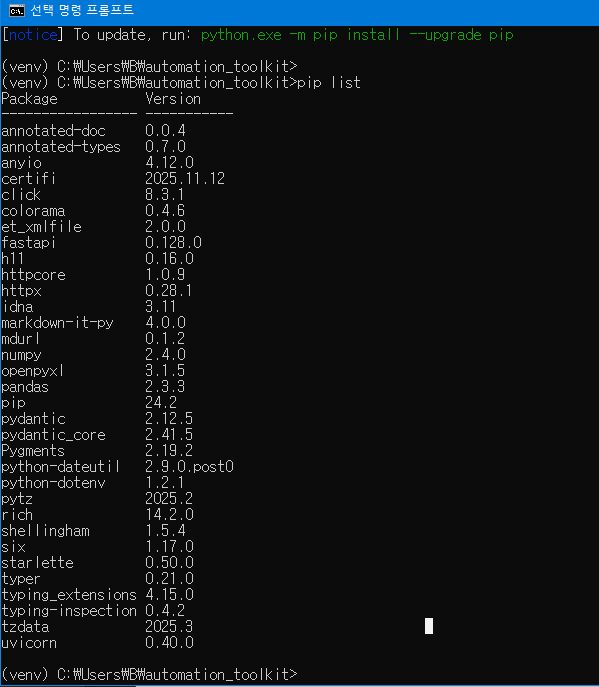
-. 설치 시 모습 ( pip list 명령어 )
2️⃣ requirements.txt 생성
-. readme.md 파일과 함께 앞으로 모든 프로젝트의 기본이 되는 파일.
-. 전달/협업/배포 시 필수
pip freeze > requirements.txt
3️⃣ 폴더 구조 생성
mkdir app app\pipeline app\utils tests examples
type nul > app\main.py
type nul > app\config.py
type nul > app\pipeline\reader.py
type nul > app\pipeline\processor.py
type nul > app\pipeline\writer.py
type nul > app\utils\logger.py
type nul > app\utils\validator.py
type nul > README.md
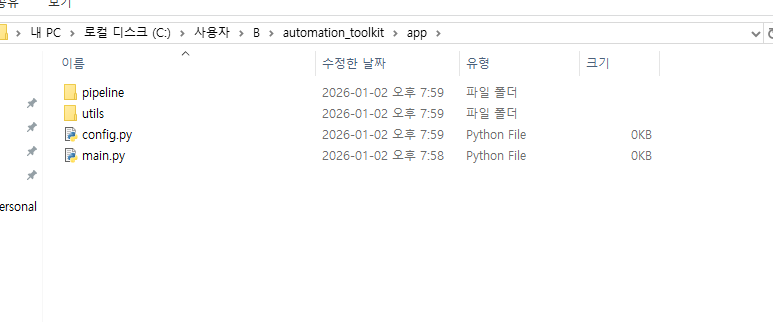
-. 결과
4️⃣ 편집기 설치 및 실행
-. 추천 : VS Code / 이유 : 간편함. 가벼움. 가독성 Good.
-. 파일(File) - 폴더 열기(Open Folder) - 아까 만든 app 폴더를 한 번 클릭 후 [폴더 열기] 클릭.
5️⃣ 가장 먼저 만들 파일 : logger.py (app\utils)
-. 먼저 만드는 이유 : 유지보수용 핵심 파일이다.
-. 상세 이유 : 프로그램 돌아가는 이유, 안 돌아가는 이유, 까먹었을 때 어떻게 동작했더라? → 로그 확인 필수
# app/utils/logger.py
import logging
from pathlib import Path

LOG_DIR = Path("logs")
LOG_DIR.mkdir(exist_ok=True)

def get_logger(name: str) -> logging.Logger:
    logger = logging.getLogger(name)
    logger.setLevel(logging.INFO)

    if not logger.handlers:
        formatter = logging.Formatter(
            "[%(asctime)s] [%(levelname)s] %(name)s - %(message)s"
        )

        file_handler = logging.FileHandler(LOG_DIR / "app.log", encoding="utf-8")
        file_handler.setFormatter(formatter)

        console_handler = logging.StreamHandler()
        console_handler.setFormatter(formatter)

        logger.addHandler(file_handler)
        logger.addHandler(console_handler)

    return logger
-. 코드 설명 : [2026-01-02 14:30:01] [INFO] reader - file loaded 이런 식으로 출력됨. 시간,레벨,이름,메시지
6️⃣ 두 번째로 만들 파일 : reader.py (app\pipeline)
-. 실제 구현에 있어 순차적으로 (reader, processor, writer)
-. reader.py의 역할
1) 입력 경로가 파일인지 폴더인지 판별
2) 데이터를 pandas.DataFrame으로 변환(정규화)
3) 과정 기록 (logger)
# app/pipeline/reader.py

from pathlib import Path
from typing import List

import pandas as pd

from app.utils.logger import get_logger

logger = get_logger(__name__)

SUPPORTED_EXTENSIONS = {".csv", ".xlsx", ".xls"}


def read_input(path: str) -> List[pd.DataFrame]:
    """
    입력 경로를 받아 CSV / Excel 파일들을 읽어 DataFrame 리스트로 반환한다.
    """
    input_path = Path(path)

    if not input_path.exists():
        logger.error(f"입력 경로가 존재하지 않음: {input_path}")
        raise FileNotFoundError(f"{input_path} not found")

    if input_path.is_file():
        logger.info(f"파일 입력 감지: {input_path}")
        return [_read_file(input_path)]

    if input_path.is_dir():
        logger.info(f"폴더 입력 감지: {input_path}")
        return _read_directory(input_path)

    logger.error(f"지원하지 않는 입력 타입: {input_path}")
    raise ValueError("Unsupported input type")


def _read_directory(dir_path: Path) -> List[pd.DataFrame]:
    dataframes: List[pd.DataFrame] = []

    for file_path in dir_path.iterdir():
        if file_path.suffix.lower() in SUPPORTED_EXTENSIONS:
            try:
                logger.info(f"파일 로드 중: {file_path.name}")
                df = _read_file(file_path)
                dataframes.append(df)
            except Exception as e:
                logger.exception(f"파일 로드 실패: {file_path.name}")

    logger.info(f"총 로드된 파일 수: {len(dataframes)}")
    return dataframes


def _read_file(file_path: Path) -> pd.DataFrame:
    ext = file_path.suffix.lower()

    if ext == ".csv":
        df = pd.read_csv(file_path)
    elif ext in {".xlsx", ".xls"}:
        df = pd.read_excel(file_path)
    else:
        logger.error(f"지원하지 않는 파일 형식: {file_path}")
        raise ValueError(f"Unsupported file extension: {ext}")

    logger.info(
        f"데이터 로드 완료: {file_path.name} "
        f"(rows={len(df)}, cols={len(df.columns)})"
    )
return df'업무 자동화 툴 킷(Automation toolkit, A.T)' 카테고리의 다른 글
| 업무 자동화 툴 킷(Automation toolkit, A.T) - 3일차 (0) | 2026.01.06 |
|---|---|
| 업무 자동화 툴 킷(Automation toolkit, A.T) - 2일차 (0) | 2026.01.04 |
| 파이썬 실습 프로젝트 : 업무 자동화 툴 킷(Automation toolkit, A.T) (0) | 2026.01.02 |